
Edit Only Part of an Image in ChatGPT: Circle to Edit
How to edit only part of an image with AI: circle the spot, describe the change, keep the rest. Tested with GPT Image 2.6, with text-only edits for comparison.
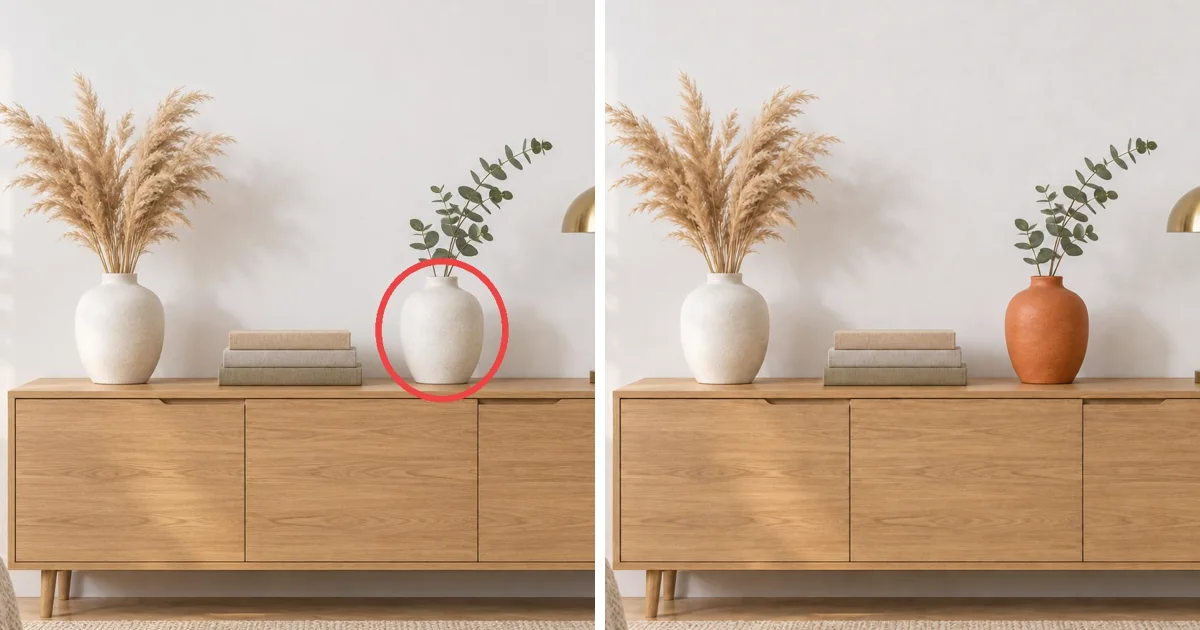
You want to change one thing in a picture: the color of one vase, one bag, one object in the background. You type the request, and the AI changes the wrong thing, or two things, or quietly redraws half the scene.
The fix in GPT Image 2.6 is simple: draw a circle. The model accepts a markup image alongside your photo, with circles, arrows or scribbles showing where to edit, and uses it as a guide (APIYI docs). ChatGPT's image editor has a similar selection tool for highlighting an area.
We ran six edits on two photos, four with a circle and two with text only, so you can see when the circle matters and when it doesn't.
The test: two vases, one change
This living room has two white vases that look almost the same. That's deliberate: it's the kind of photo where a text-only request is ambiguous.
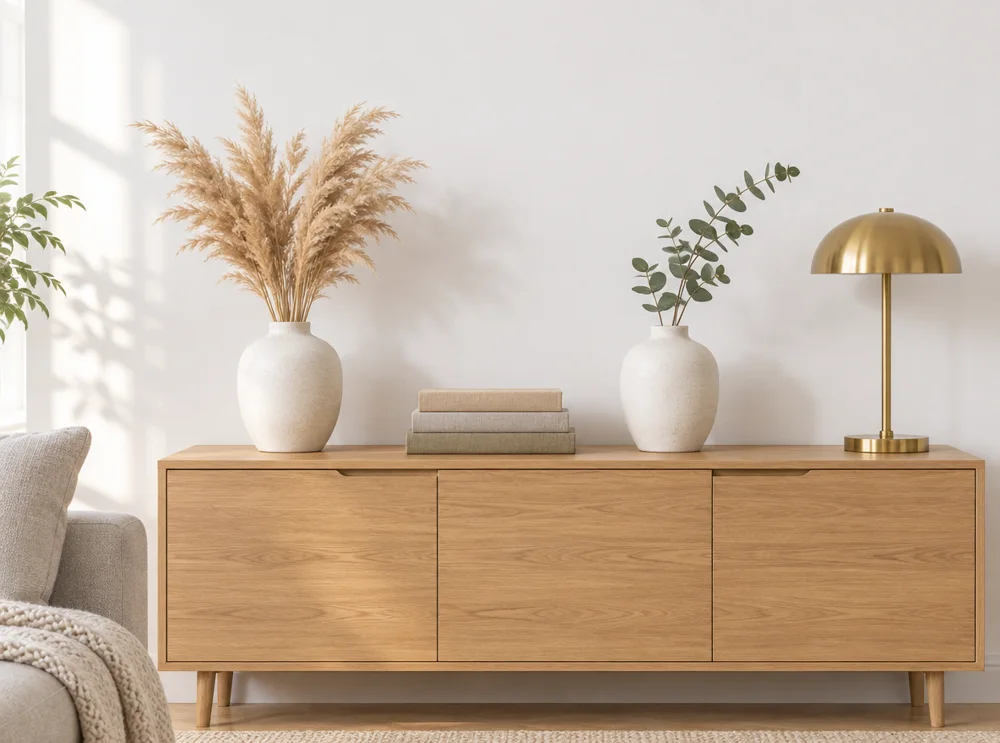
First, text only: "Make the white vase terracotta orange." Then the same request with the right-hand vase circled:
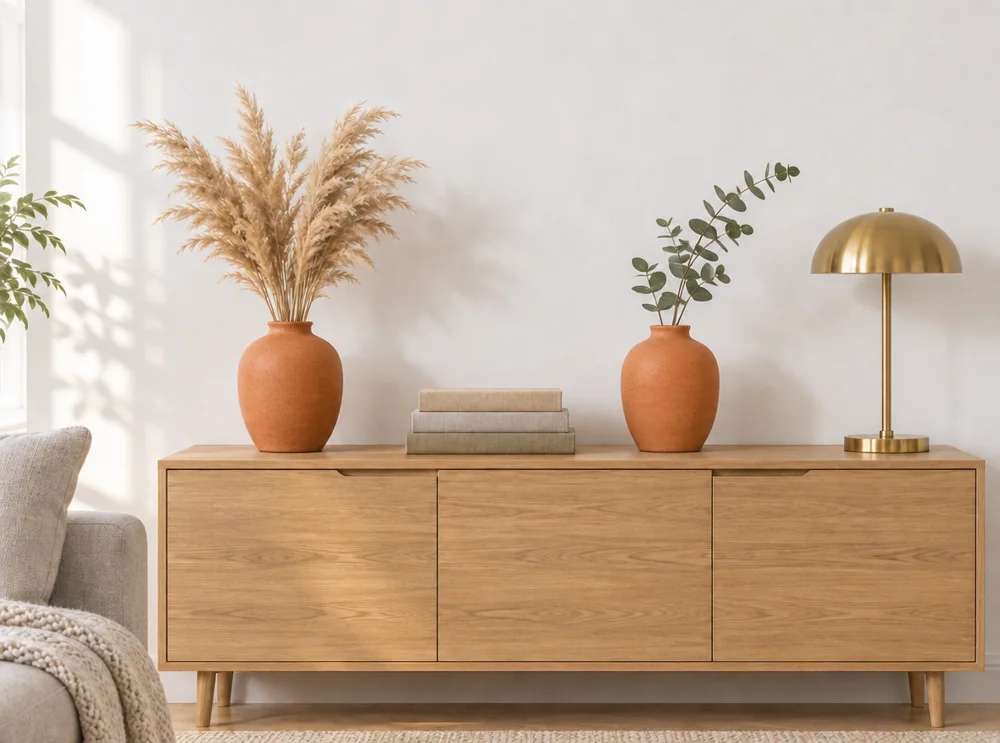
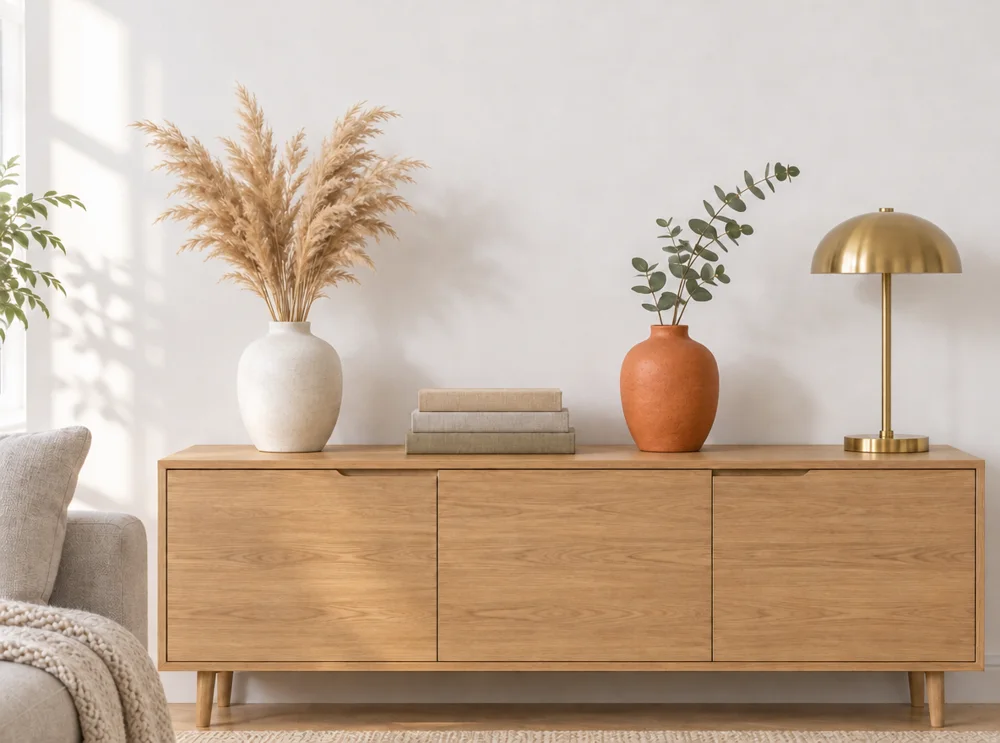
With text alone, the model had no way to know which vase we meant, so it changed both. With the circle, it changed exactly one and left the books, the lamp, the pampas grass and the light where they were.
Make the circled vase terracotta orange. Keep everything else exactly as it is and remove the red circle.
Try this promptHow to circle-edit a photo
On Image26:
- Open Image26 and attach your photo with the image button.
- Click Circle to edit on the attached photo. Circle, point at or write on the part you want changed, then click Use these marks.
- Describe the change in the prompt, press Generate.
It's an ordinary edit, 13 credits at the default setting; ours took 70 to 120 seconds. Circle editing needs GPT Image 2.6 (the default model). If you switch to 2.5, the marks are removed.
In ChatGPT: open the image, use the selection tool to brush over the area, then type what should change.
Four more circle edits
Add something to an empty spot
Circles aren't only for changing things. Mark an empty area and say what goes there; the model places it inside the mark, at a sensible size, with matching light.
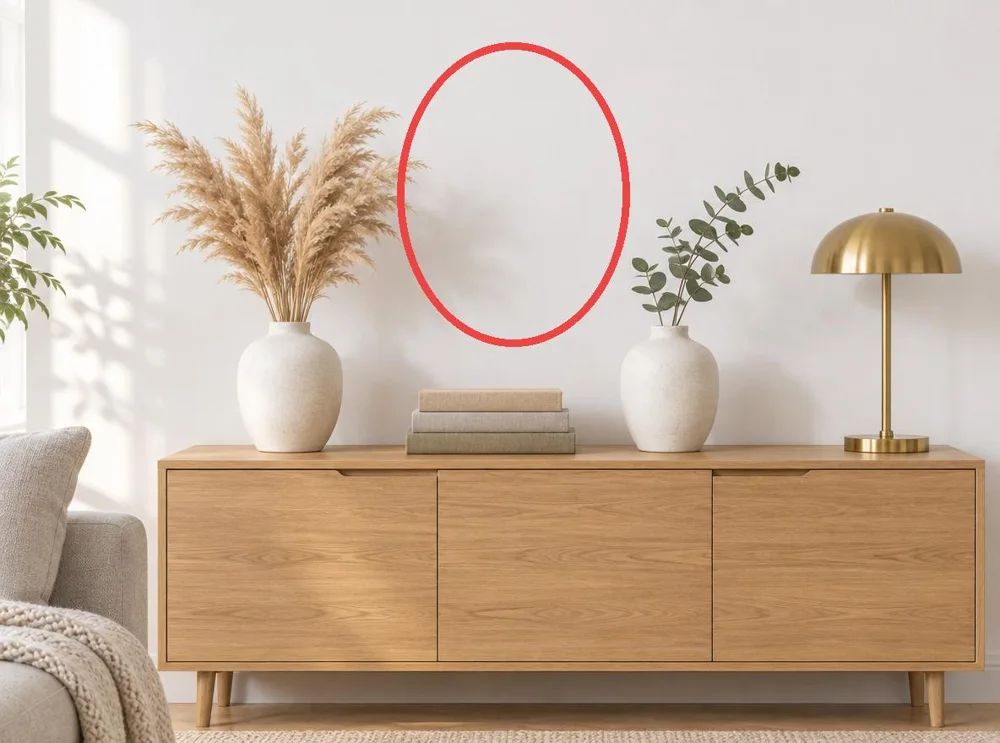
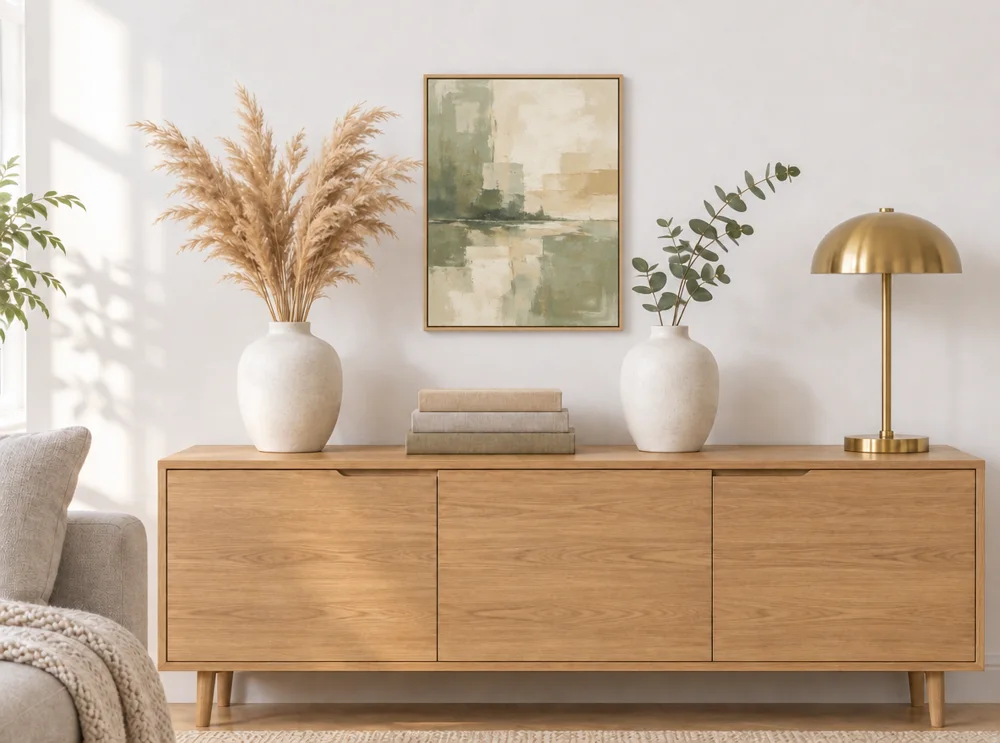
Add a framed abstract painting in muted sage green and sand tones inside the circled area of the wall, hung naturally with a thin oak frame. Keep everything else exactly as it is and remove the red circle.
Try this promptSwap a small item on a person
Small objects are where text edits drift most, because a change near a person invites the model to "improve" the person too.
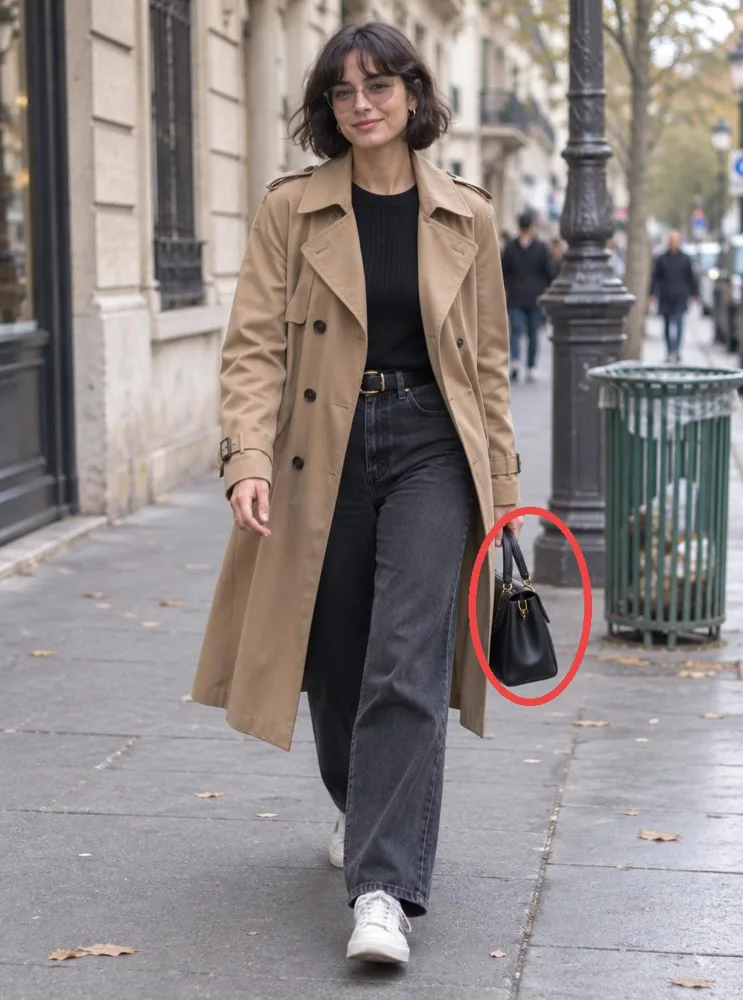
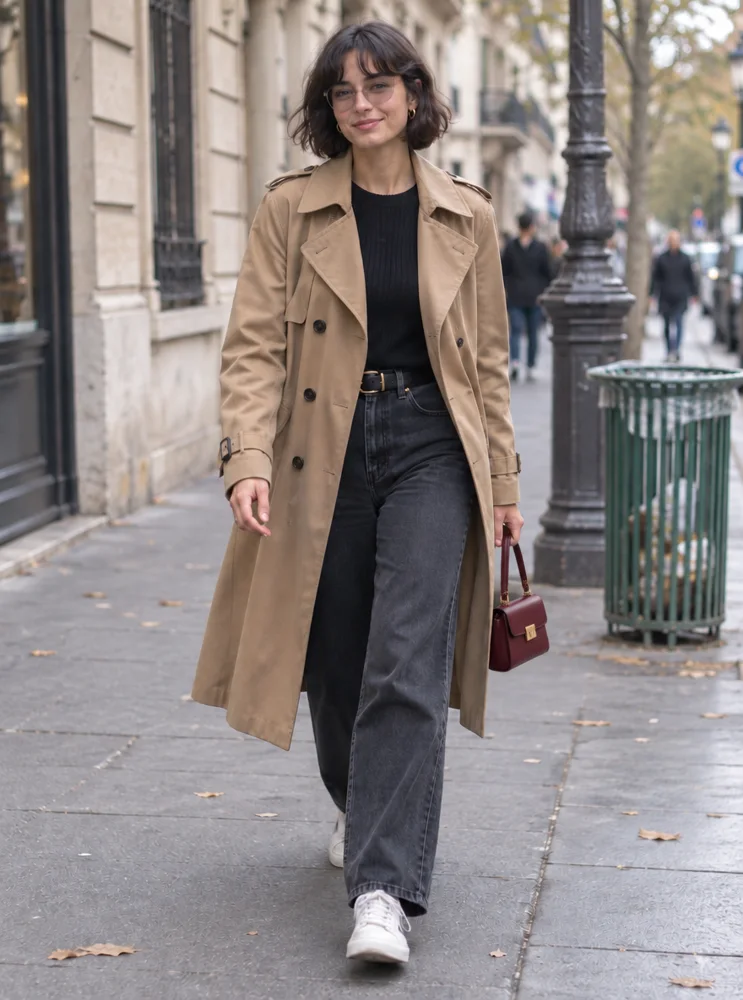
Change the circled handbag to a small burgundy leather bag with a gold clasp. Keep her, her clothes and the street exactly as they are and remove the red circle.
Try this promptRemove something from the background
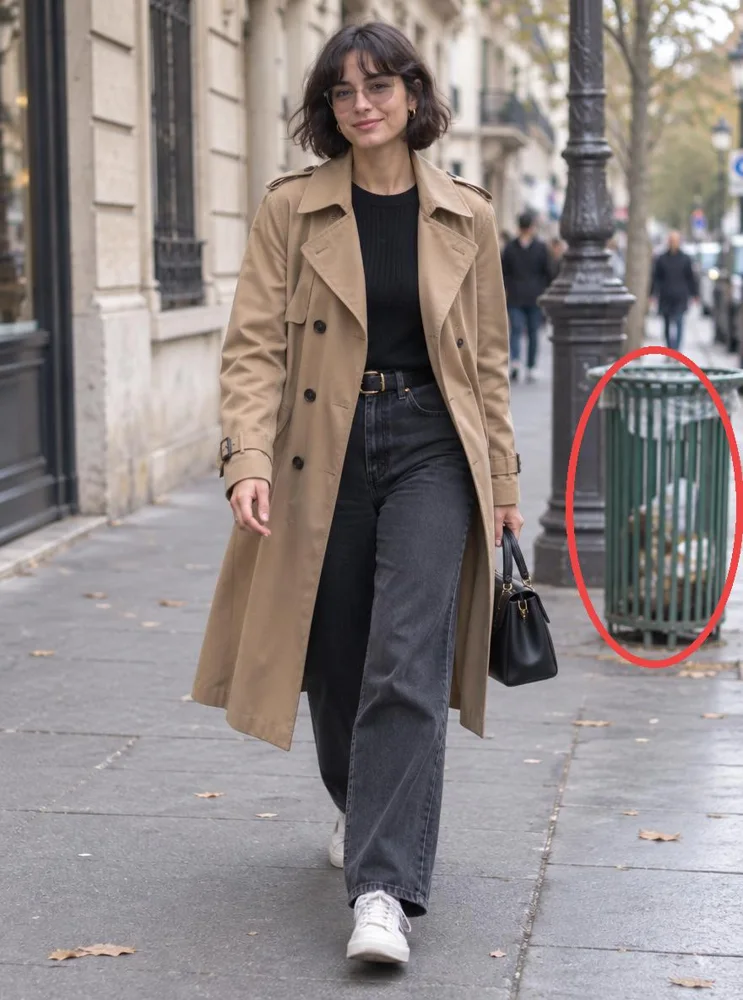
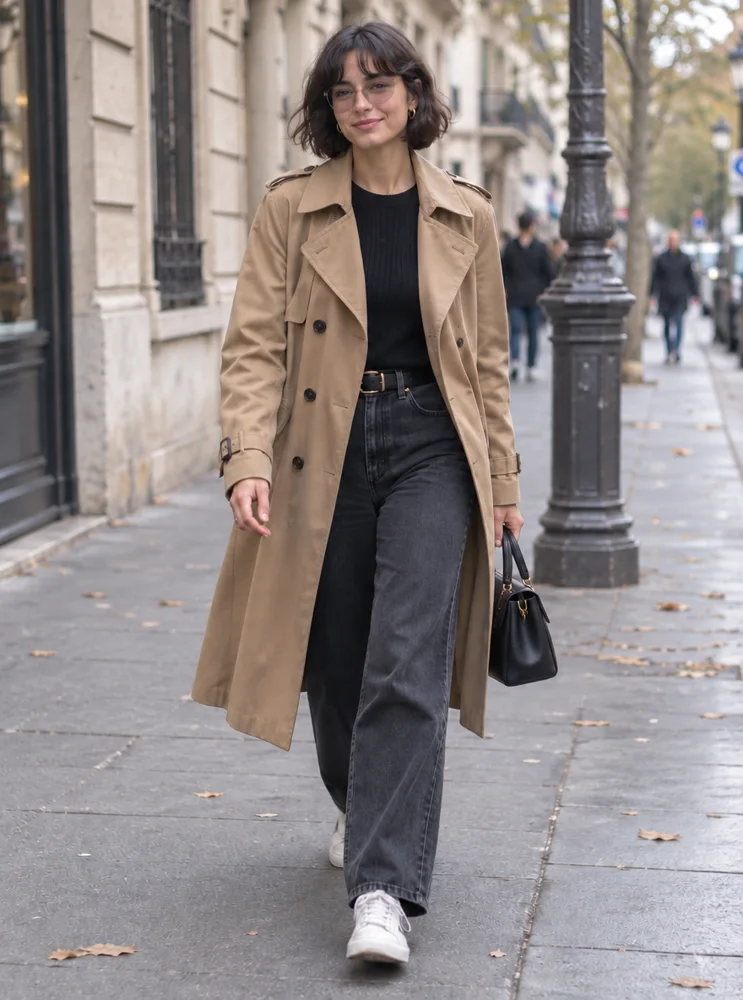
Remove the circled trash bin completely and fill in the sidewalk and the street behind it naturally. Keep everything else exactly as it is and remove the red circle.
Try this promptThe lamppost right next to the bin survived, and the sidewalk and the people behind it were filled in convincingly.
When you don't need a circle
If there's only one of the thing and it's big, words are enough. "Change her trench coat to navy blue" had nothing to confuse it with:
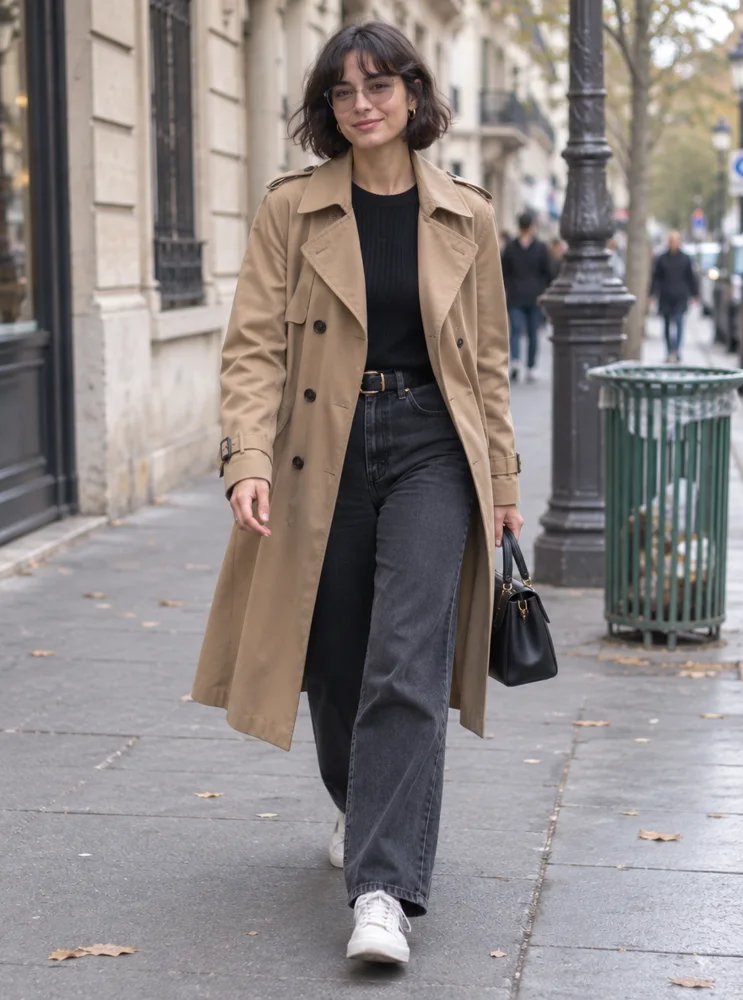
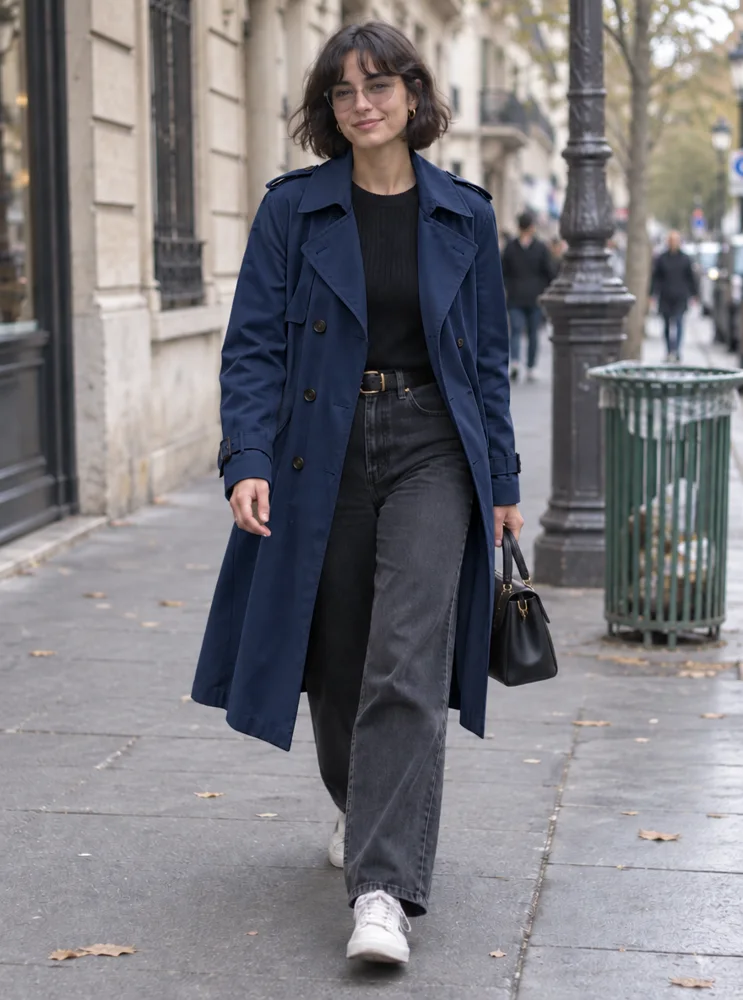
A rule of thumb: circle when there's more than one candidate, when the target is small, or when you're adding something to an empty spot. Otherwise, text is faster.
Tips for circle edits
- Say what to keep and what to do with the marks. Every prompt above ends with "Keep everything else exactly as it is and remove the red circle", so the edit stays local and the marks don't end up in the picture.
- Circle a little larger than the object. Room around the edge lets the model blend the new part in, especially for removals.
- One change per edit. Chain edits rather than stacking several requests into one; if something goes wrong, you only redo that step.
- Marks don't have to be circles. The editor also lets you point with an arrow or write a word on the photo, then explain it in the prompt.
- Check the whole image afterwards. Edits re-render the picture, so tiny details elsewhere can shift slightly. In our tests faces and text stayed put, but look before you publish.
FAQ
Can ChatGPT edit only part of an image? Yes. Select the area in ChatGPT's image editor, or with GPT Image 2.6 draw a circle on the photo, and describe the change. The rest of the image stays as it was.
Why does AI change the whole picture when I only asked for one thing? Usually because the request was ambiguous (two similar objects) or the target was small. A circle removes the ambiguity.
Can I remove objects or people from a photo this way? Yes. Circle them and ask for removal with a natural fill, as with the trash bin above. Larger removals may need a second try.
Does circle editing cost extra? No. On Image26 it's a normal edit, 13 credits at the default setting.
Does it work with GPT Image 2.5? No. Markup-guided editing is new in GPT Image 2.6.
Try it on your own photo: open Image26, attach it and click Circle to edit. For bigger transformations of one character, see the ChatGPT character sheet prompts.